
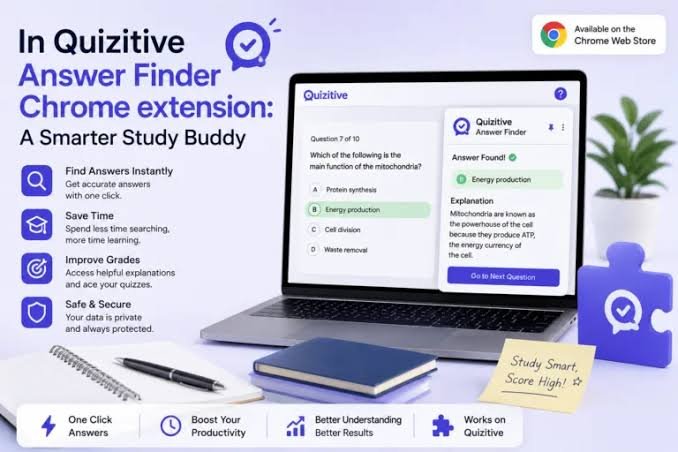
If you’ve spent any time grinding through InQuizitive assignments at 11pm, you’ve probably wondered whether there’s a browser tool that could make the whole process smoother. A search for InQuizitive Study Chrome Extension turns up a mixed bag of results — some legitimate study aids, some questionable automation tools, and a few extensions that borrow the name without any real connection to the platform. Before you add anything to your browser, it’s worth understanding what these tools actually are, what they can realistically do, and how to tell a helpful study companion from something that could get you in trouble or compromise your data.
This isn’t a guide for finding shortcuts around your coursework. It’s a practical rundown of how a Chrome extension interacts with a site like InQuizitive, what to check before installing one, and how to use browser tools in a way that actually supports learning instead of undermining it.
What Is an InQuizitive Study Chrome Extension?
At the most basic level, a Chrome extension is just a small piece of software that runs inside your browser and adds functionality that Chrome doesn’t have by default. It sits separately from whatever website you’re visiting — it isn’t part of InQuizitive itself, and it isn’t built or maintained by the company behind the platform unless explicitly stated.
That distinction matters more than people realize. An InQuizitive Study Chrome Extension might be built by an independent developer who wants to help students track their progress, reformat questions for easier reading, or organize notes alongside the assignment page. Or it could be something else entirely, dressed up with a similar-sounding name to attract search traffic. The name alone tells you almost nothing about who made it or what it actually does under the hood.
Extension vs. Platform
Students sometimes assume that if an extension shows up when they search their course platform’s name, it must be sanctioned or connected in some way. That’s rarely true. InQuizitive is the learning platform; a browser extension referencing it is a separate, third-party piece of software with its own developer, its own permissions, and its own track record — or lack of one. Treat them as unrelated until you’ve confirmed otherwise.
How Does a Study Chrome Extension Work?
The mechanics are fairly simple once you break them down. You install the extension, Chrome asks you to approve certain permissions, and from then on the extension can act on pages it has access to — usually by injecting a small script into the page you’re viewing, watching for specific content, or adding a button or panel to the interface.
That’s the general pattern: install it, grant permissions, open a page it’s built for, let it detect what’s there, and interact with whatever it adds to your screen. Some extensions store data locally in your browser so your settings persist between sessions. Some check in periodically for updates, since a change to the underlying website’s code can break an extension that was built around the old layout.
What an extension can’t do is more important than what it can. Browser permissions are the boundary — an extension only gets access to what you allow, and a well-built one should only ask for what it genuinely needs. If a tool claims to read every answer on a quiz page automatically or bypass restrictions the platform has in place, that’s worth treating with real skepticism rather than taking at face value.
Why Permissions Matter
When Chrome shows you a permissions prompt during installation, actually read it. It’s easy to click through, but that prompt is really the only window you get into what an extension can touch. A simple gut-check works well here: does this permission make sense for what the tool is supposed to do? A note-taking extension asking to read and change data on every website you visit is a mismatch worth noticing. A tool that only needs to run on a specific page shouldn’t be requesting broad access to your browsing activity.
How to Find the Right Extension
Not every listing in the Chrome Web Store deserves the same trust. Before installing anything with “InQuizitive” in the title, take a few minutes to actually look at who built it.
Check the developer name, not just the extension name — anyone can name a listing something catchy. Read the description closely and see if it matches what you actually need, rather than promising something suspiciously broad. Look at how recently it was updated; an extension that hasn’t been touched in a year or two is more likely to break on a site that changes its layout regularly. Reviews are useful too, though they’re one signal among several, not proof on their own.
Watch for Unofficial Copies
It’s genuinely common for extensions built around popular course platforms to use similar names to ride on search traffic, without any real affiliation. Some are harmless — just poorly maintained hobby projects. Others exist specifically to market themselves as shortcuts or “cheats,” which is a different problem entirely and one worth avoiding for reasons that go beyond just software quality. Don’t install something just because the title contains the right keyword; confirm what it actually does first.
How to Install an InQuizitive Study Chrome Extension
Assuming you’ve found a listing you’re comfortable with, installation itself is straightforward. Open Chrome, head to the Chrome Web Store, and search for the extension by its exact name rather than a general keyword — that helps you land on the right listing instead of a lookalike. Open the page, review the developer information and permissions one more time, and check the privacy section if the listing includes one.
If everything checks out, click Add to Chrome. You’ll get a final permissions prompt — read it, then confirm. Once it’s installed, you can find it in Chrome’s extensions menu (the puzzle-piece icon in the toolbar), where you can pin it for easy access or check whether it’s currently active.
One thing worth flagging directly: don’t download extension files from random third-party sites promising an “official” version outside the Chrome Web Store. That’s a much easier way to end up with something that doesn’t do what it claims.
How to Use the Extension While Studying
Once it’s installed, using it well comes down to a fairly simple rhythm. Open the InQuizitive page or course environment you’re working in, glance at your extensions menu to confirm the tool is active, and then stick to whatever functions the developer actually documented — not whatever you’ve heard secondhand that it might do.
Where this kind of tool genuinely earns its place is in the smaller, unglamorous parts of studying. Maybe it helps you flag questions you got wrong so you can revisit them later. Maybe it keeps a running list of terms you didn’t recognize. Used that way, an InQuizitive Study Chrome Extension can slot into a broader study routine without becoming a replacement for actually working through the material — because at some point, the extension closes and the test doesn’t have one installed.
Can a Chrome Extension Automatically Answer InQuizitive Questions?
Short answer: it depends entirely on the specific extension, and that’s not a dodge — it genuinely varies. Some tools are limited to formatting or note-taking and have no ability to interact with question content at all. Others are built explicitly to detect and fill in answers, and those exist in a very different category, both technically and ethically.
A few things are worth keeping in mind here. Website updates can quietly break automation-style extensions overnight, since they usually rely on matching very specific page structures. Permissions still apply — an extension can’t do more than what you’ve allowed it to access. And just because a tool claims to answer questions for you doesn’t mean it’s reliable, safe, or sanctioned by your school in any way.
This is also where academic integrity comes in, and it’s not a minor footnote. Most institutions have clear policies about outside tools during graded coursework, and an extension marketed as a shortcut can put your standing at risk even if it technically “works.” The more useful question isn’t “can something answer this for me” but “am I actually going to understand this material when the extension isn’t there.”
Common Problems and How to Troubleshoot Them
Extensions break, and when they do, the fixes are usually mundane rather than mysterious.
If the extension doesn’t show up at all, check Chrome’s Extensions page to confirm it actually installed and that it’s toggled on — it’s easy to miss that it got disabled at some point. If it’s installed but not doing anything on the InQuizitive page itself, the culprit is often a site update that changed the page’s structure, an outdated extension version, a permission you didn’t grant, or another extension quietly interfering in the background.
A permission warning popping up unexpectedly shouldn’t be brushed off — take a second look at what’s being requested and whether it still lines up with what the tool is supposed to do. And if something that used to work suddenly stops, try the boring stuff first: refresh the page, restart the browser, check for pending updates to both the extension and Chrome itself, and temporarily disable other extensions to rule out a conflict. Turning off Chrome’s built-in security warnings just to force a broken extension to run is not a fix worth reaching for.
Is It Safe to Use an InQuizitive Chrome Extension?
Safety here isn’t a yes-or-no answer about extensions in general — it’s specific to each tool. The things worth checking are consistent, though: who built it, what it can access, whether that access matches its stated purpose, what data it collects, and whether the listing is clear about all of that or vague and evasive.
A Simple Safety Check Before Installation
A quick mental checklist covers most of it — who made this, what does it touch, why does it need that access, what happens to any data it collects, and is the actual functionality explained in plain terms rather than marketing language. Be especially cautious about entering passwords or any personal information into a tool you haven’t fully vetted, no matter how convenient it looks.
Responsible Ways to Use Browser Tools for Studying
Browser extensions are at their best when they remove friction from studying without doing the thinking for you. That might mean using one to keep your notes organized alongside your coursework, or to track which topics keep tripping you up so you know where to focus review time. Pausing after a missed question to actually understand why it was wrong tends to matter more than any tool you’re running. So does going back to the source material when a concept doesn’t click, and using practice questions as a genuine check on your understanding rather than a box to check off.
None of that requires an extension. But paired with one that’s built thoughtfully, and used within whatever rules your course sets around outside tools, a browser add-on can be a reasonable part of a study routine — just not the whole thing.
InQuizitive Study Chrome Extension vs. Manual Study
| Approach | Where it helps |
| Chrome extension | Browser-based support, depending on what it’s actually built to do |
| Course materials | Learning the underlying concepts |
| Personal notes | Reviewing your own weak spots |
| Practice questions | Testing whether you actually understand something |
| Instructor support | Clarifying anything that still doesn’t make sense |
None of these fully replaces the others. A browser tool can make the process a little smoother, but it’s still one piece of a study approach, not the whole thing.
Final Takeaway
A Chrome extension is a browser add-on — not an official feature of InQuizitive, and not automatically trustworthy just because it shares the name. What it actually does depends entirely on the specific tool, so it’s worth checking the developer, the permissions, and the privacy details before you install anything. Used thoughtfully, and within your course’s rules, a browser tool can genuinely support how you study. Used as a substitute for doing the work, it’s a risk that usually isn’t worth taking. Know what a tool does before you give it access to your browser — that one habit avoids most of the trouble.
Frequently Asked Questions
What is an InQuizitive Study Chrome Extension?
It’s a third-party browser extension built around study activity related to InQuizitive or its web pages. Exact features vary a lot from one listing to another, so it’s worth checking the specific tool rather than assuming based on the name.
How do I install one?
Search for the exact extension by name in the Chrome Web Store, check the developer and requested permissions, and click Add to Chrome if you’re comfortable with what it’s asking for.
Can it give me answers automatically?
Some claim to, and that depends entirely on the specific extension. Treat that kind of claim carefully — both because it may not work reliably and because it can run against your school’s academic integrity policies.
Why isn’t my extension working on the page?
Usually it’s an outdated version, a site update that changed the page structure, a missing permission, or a conflict with another extension.
Are these extensions safe for students?
It depends on the individual tool. Check the developer, permissions, and privacy practices before installing anything.
Can I use one for graded InQuizitive assignments?
Check your course’s specific rules first. The safest approach is using technology to support your understanding, not to substitute for it.